


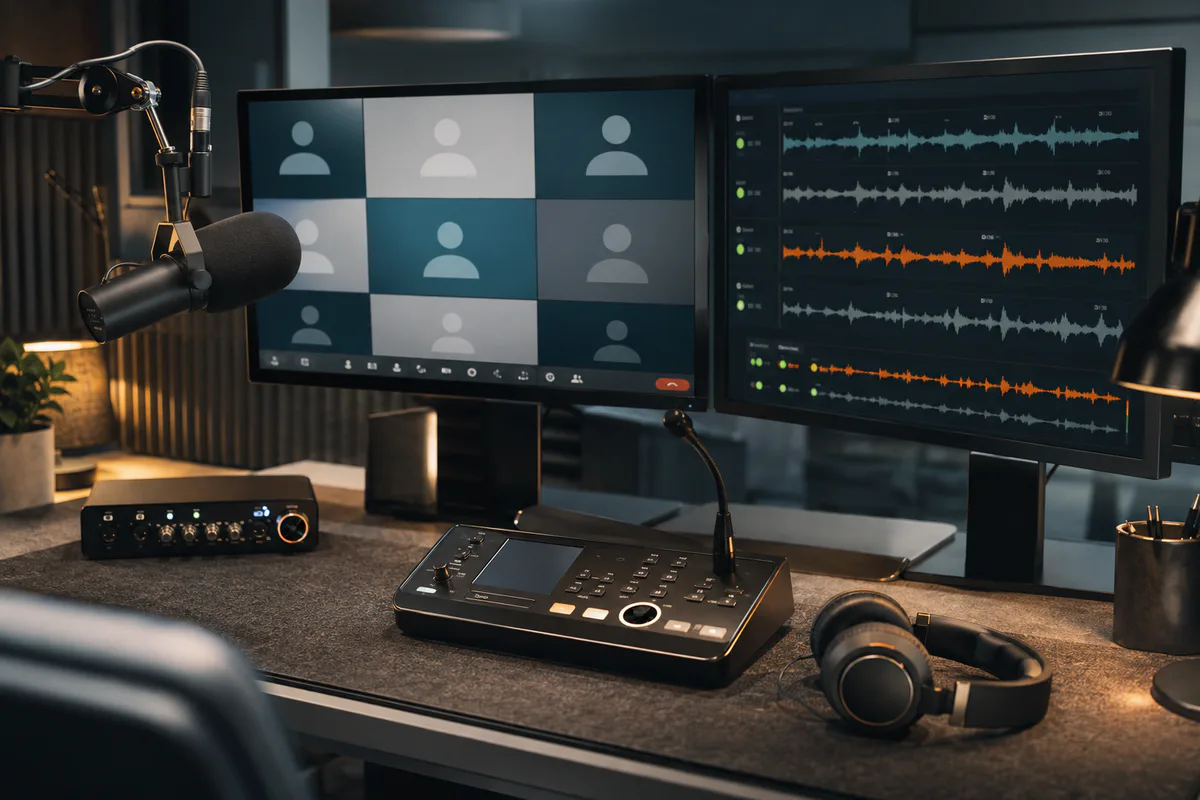
Simultaneous interpreting in Zoom meetings requires platform preparation, professional interpreters and a clear event plan. This guide concerns a human interpreting service. Do not assume an automated caption or translation option is the same arrangement.
Preparation starts before attendees are told which language to listen to. Define the language directions, interpreter roles, presentation material and rehearsal. Use these steps alongside Zoom’s official help resources; menu wording may differ by app language and version.
Start with the Meeting’s Language and Responsibility Plan
Who will present in each language, what languages will questions use and what does each audience need to hear? Put the answers in the programme. A two-way Turkish–English discussion is a different assignment from interpreting an English presentation into Turkish.
Identify the meeting host, technical contact and interpreting team. Do not expect the interpreter to admit participants, manage screen sharing and monitor the recording while interpreting. Agree team rotation and breaks for extended or demanding sessions.
Make the programme clear enough that a substitute technical contact could understand it. Distinguish the person making an organisational decision from the person operating the meeting controls. This is useful when several companies or institutions share responsibility for an event.
Enable Language Interpretation in the Zoom Account
Zoom lists Pro, Business, Education or Enterprise accounts for this feature. In your web portal, check Settings → Meeting → In Meeting (Advanced) → Language Interpretation. Contact the administrator if it is locked. If Turkish is missing, check the option to add a language.
Identify the account that will host the real event and use it for the rehearsal. Do not assume a feature demonstrated in another organiser’s account is enabled in yours. Ask the account’s technical contact to confirm the available settings before the test.
Schedule the Meeting and Assign the Interpreters
- 1 · Meeting ID: Choose Generate Automatically.
- 2 · Language support: Enable language interpretation for the scheduled meeting.
- 3 · Assignments: Add interpreter emails and language pairs, then save.
Confirm the invitation addresses and the accounts the interpreters will use. Send the team the rehearsal time, technical contact and final presentation material alongside the agenda. Treat attendee invitations and interpreter assignments as separate checks.
Include time zones explicitly in the briefing. A useful invitation states both the rehearsal and live programme clearly, including when speakers and interpreters are expected to be ready. Last-minute timetable changes should reach the entire working team.
Start the Language Channels at the Meeting
Open the meeting in the desktop app. In Interpretation, check assignments and select Start. Attendees choose their listening language.
Ask the moderator to run a short listening check. Use separate sample sentences for Turkish and English; hearing sound in the host’s own device is not enough. A representative listener for each audience should confirm the interpretation on their actual device.
Send a brief language-selection instruction and show it again at the opening. Give attendees a clear way to contact technical support if needed. Instructions should remain understandable without depending entirely on one screenshot.
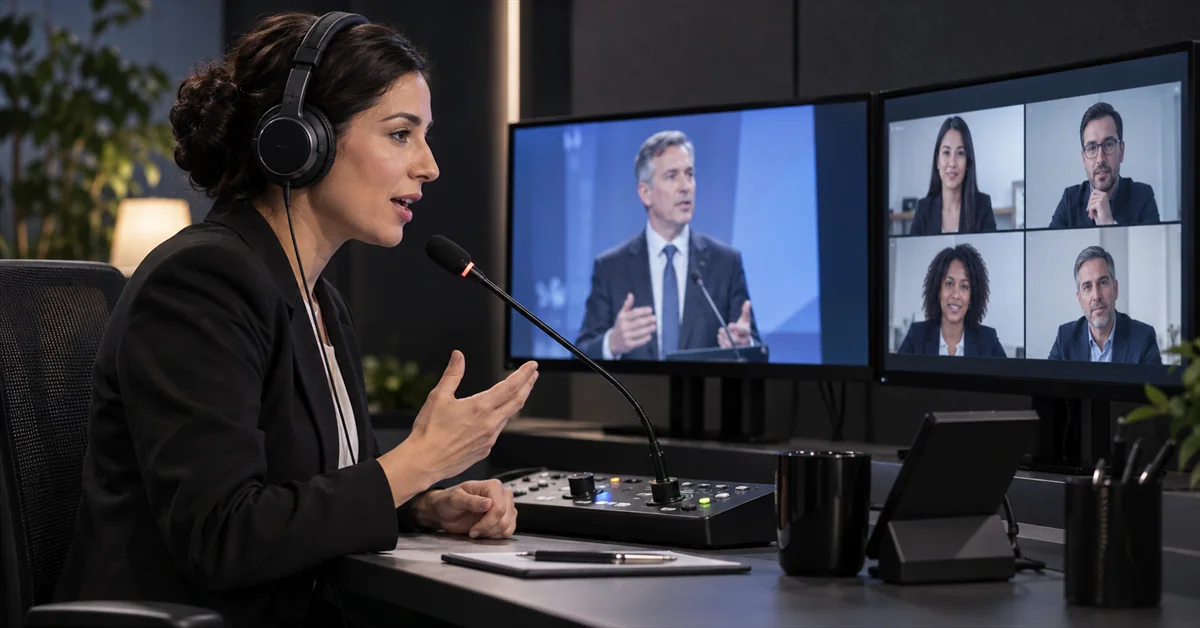
What Should the Audio Rehearsal Test?
- Speakers: Try each speaker’s real microphone in the environment they will use.
- Listeners: Check the listening experience with representative users and different devices.
- Presentation content: Rehearse screen sharing and any video or other audio using the actual material.
- Questions: Test an audience question, the moderator’s response and both interpreting directions.
- Team handover: Agree interpreter changes and a clear method for reporting technical problems.
Use a quiet working area and suitable microphone and headphones. Echo from loudspeakers or a noisy connection can make the task harder. If a critical passage is inaudible, the moderator should pause and request repetition rather than expect the team to guess missing information.
Agree a fallback procedure for an interruption. For example, the moderator can pause the agenda, identify which audience is affected and resume only after a listening check. Choose the procedure during rehearsal instead of improvising it during a technical presentation.
Plan Breakout Work and Avoid Unsuitable Meeting Setups
Zoom’s native language channels work in the main session, not breakout rooms. Do not assume this setup applies to Personal Meeting IDs or instant meetings.
Explain small-group work when requesting the quotation. Consecutive interpreting in separate groups or a different session arrangement can be considered according to the task and technical conditions. A working main-session setup does not automatically support every parallel discussion.
Plan Interpretation Recordings and Confidentiality
Zoom’s cloud recording settings include Record the Interpretation → Record language interpreter. When enabled, the recording can produce an audio file for each language interpretation. Confirm the account settings and inspect a test recording’s output.
If recording is required, agree its purpose, access and sharing period in advance. Later publication or reuse of the interpretation should also be discussed within the assignment scope. A meeting invitation alone does not explain every recording or reuse expectation.
Keep preparation files within an agreed sharing process. The interpreter may need selected slides and terminology without needing access to an organisation’s entire document archive. Assign one person to communicate revisions.
What Should You Send a Zoom Interpreting Team?
Share the agenda, time zone, speakers, slides, terminology and question plan. Correct spellings of names and product references can be as useful as specialist abbreviations. Tell the team where to find final versions through one designated contact.
TG Interpreting can plan language teams for online meetings according to the assignment. Include the date, duration, languages, audience and who manages the hosting account when requesting a quote. Interpreting, technical moderation and any written translation should have clearly defined scopes.
Zoom Simultaneous Interpreting: Frequently Asked Questions
Why can’t I see Language Interpretation?
Check account eligibility, user permissions and administrator settings. Review Zoom’s official help pages with your organisation’s technical contact.
Is assigning interpreters just before the meeting enough?
Assignments also need subject preparation and an audio rehearsal. Sending only a meeting link does not establish language directions or a working plan.
Can a small Zoom meeting use consecutive interpreting?
It can be considered for a compact, interactive discussion. Agree speaking turns and pauses with the moderator and allow time for interpretation.
Does an online event need only one interpreter?
No. Duration, intensity, language directions and parallel sessions affect staffing. Working online does not remove those considerations.